
Make
Connect any of the 2,000+ apps in Make to AlertHub and send alerts without writing code. The integration is currently available via invite.
Step 0: Accept the invite
Open the invitation link and install AlertHub in your Make organization:
👉 Accept the AlertHub Make invite
After you accept, AlertHub appears as an app you can add to any scenario.
How it works
- Connect Make to your AlertHub project with the project secret key.
- Add the AlertHub module and fill in title, description, level, and source.
You can map values from previous modules in the scenario (a new Stripe charge, a form submission, a Google Sheets row, etc.) into those fields.
Step 1: Connect a project
-
In your Make scenario, add the AlertHub module.
-
In Connection, click Add.
-
Fill in:
- Connection name — a label for this connection (e.g.
ProductionorTest). - Project secret key — the One-Way Secret Key from your AlertHub Project Settings.
- Connection name — a label for this connection (e.g.
-
Click Save.
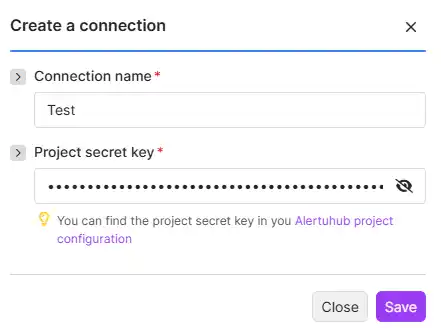
You can reuse the same connection in other scenarios. Click Add again if you need to connect a different AlertHub project.
Step 2: Send an alert
Configure the AlertHub module with the alert content. Click a field to map data from earlier modules in the scenario. For Alert level, turn on Map if you want to set the severity dynamically.
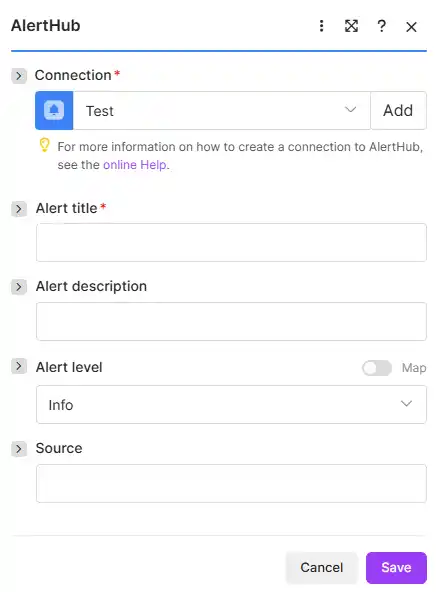
| Field | Required | Notes |
|---|---|---|
| Connection | Yes | The AlertHub project you connected in Step 1. |
| Alert title | Yes | Short headline shown in the dashboard and notifications. |
| Alert description | No | Extra context. Can include mapped data from previous modules. |
| Alert level | No | Info (default), Warning, or Critical. Use Map to set it from a previous step. |
| Source | No | Label for where the alert came from (e.g. Make, Stripe, Typeform). |
Tip: Only warning and critical alerts are forwarded to Slack, Telegram, WhatsApp, and other destinations.
infoalerts are stored in the dashboard.
Click Save, then run the scenario (or use Run once) to send a test alert. If it succeeds, open your AlertHub dashboard — the alert should appear immediately.
Example scenario
A typical Make scenario looks like this:
- Trigger — e.g. Stripe Watch Payments, Typeform Watch Responses, or Google Sheets Watch New Rows.
- Action — AlertHub:
- Title:
New payment: {{amount}} {{currency}} - Description:
Customer {{email}} paid via Stripe. - Level:
Info - Source:
Stripe
- Title:
Turn the scenario on. From then on, matching events become AlertHub alerts and can be routed to Slack, Telegram, email, or any other destination.